'%3e%3cg%20id='组_13902'%20data-name='组%2013902'%20transform='translate(-14139.51%20-7418.167)'%3e%3cellipse%20id='椭圆_10375'%20data-name='椭圆%2010375'%20cx='373'%20cy='373'%20rx='373'%20ry='373'%20transform='translate(-13.49%2057.167)'%20fill='url(%23radial-gradient)'/%3e%3cpath%20id='路径_20875'%20data-name='路径%2020875'%20d='M329.248,19.9q0,2.735-5.469,9.571t-6.837,12.306q-10.939,0-31.448,3.076t-30.764,3.076a99.6,99.6,0,0,1-11.28-1.025,100.371,100.371,0,0,0-11.964-1.025q-12.306,1.367-35.55,6.153-21.877,8.2-46.488,45.121t-26.662,61.529a73.892,73.892,0,0,1,20.51-3.418q65.631,0,121.69,22.561l6.153-.684q2.051,5.469,12.306,15.724t12.306,18.459q-2.735,12.306-17.775,19.826-20.51,10.255-23.928,13.673-97.762-7.52-94.344-7.52-10.255,0-54.009,30.764Q84.5,322.755,78.347,356.254T72.194,446.5a18.2,18.2,0,0,0,2.051,8.2l-2.051,1.367-2.051,6.153q-6.837,1.367-19.826,9.571-2.051-6.153-2.051-18.8t-2.051-18.8q1.367-13.673.684-79.3,0-48.539,7.52-78.62L48.266,270.8q0-4.1-.684-12.306V246.869q0-17.091,9.571-33.5,17.091-30.081,17.091-30.764,10.938-25.979,21.877-69.049H93.387q-15.724-1.367-21.193,21.877-7.52.684-21.535,13.673T26.389,162.1q-9.571,0-17.775-15.04T.41,121.077q0-12.306,8.2-28.713l-.684-4.1a60.81,60.81,0,0,1-3.418-6.153l5.469-4.786L7.93,26.049q8.887-14.357,24.612-10.938,2.051-6.153,9.229-12.648t8.546-9.229A187.573,187.573,0,0,1,69.459-9.5l3.418,3.418a12.9,12.9,0,0,0,4.1.684q-.684,0,38.285-5.469,71.784-10.255,102.548-10.255Q319.676-21.123,329.248,19.9Z'%20transform='translate(210.119%20238.766)'%20fill='url(%23linear-gradient)'/%3e%3c/g%3e%3c/g%3e%3c/svg%3e)
First of all, use your browser to enter the address: https://feee.io/b2c to open the website, before placing an order, you need to fill in the order information, respectively, fill in the energy receiver; the amount of rental; the length of the rental. We will give you a detailed explanation of the 3 options below.
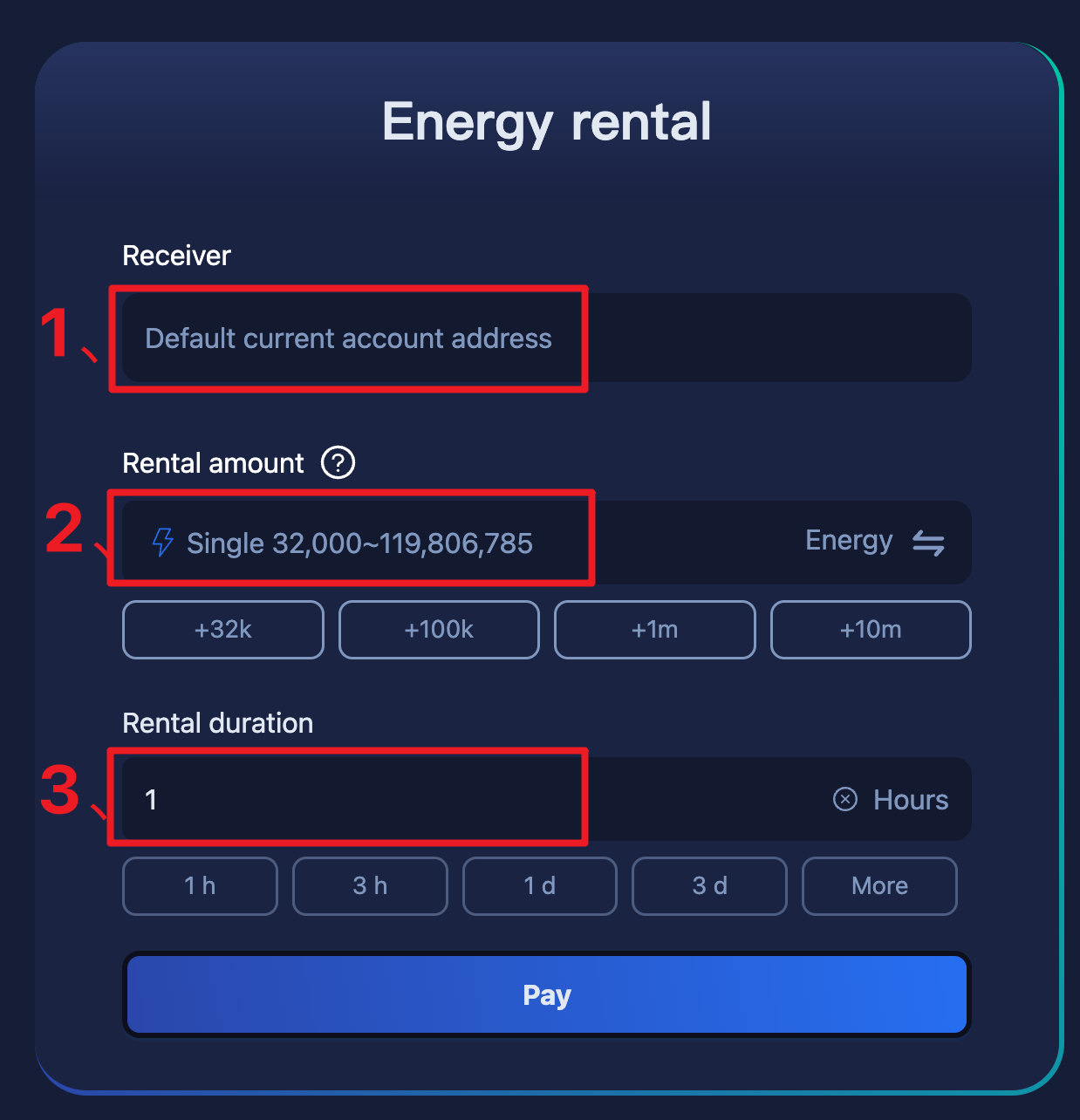
1: Receiver
Fill in the receiver's tron wave field address to receive the energy, the address must be an activated and valid address. (Any address with a trx transaction record means that it has been activated. If the address is not activated, it can be activated by transferring to any trx first.)
2:Rental mount
The amount of energy rented represents the amount of energy that needs to be rented in a single order, with a minimum of 32,000 energy and a maximum amount of energy that is constantly adjusted according to the platform's algorithm. You can also click the toggle button
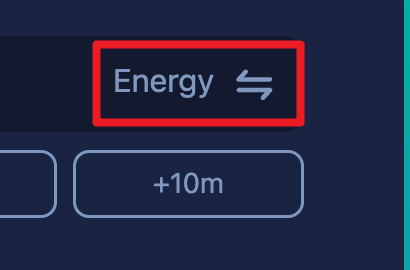
next to the energy to change to transfer the number of units rented, The user does not need to calculate the energy corresponding to the number of transfers, the system calculates it automatically (the system calculates it on the basis of the standard that the recipient of the transfer has USDT, if the address does not have usdt then the energy consumed will be about twice as much).
3:Rental Duration
Rental time options range from 1 hour; 3 hours, 1-30 days. The rental time is calculated from the time the energy agent arrives at the receiving address, and the system automatically recovers the energy when it expires.
Fill in your information and click "Pay" to place your order.
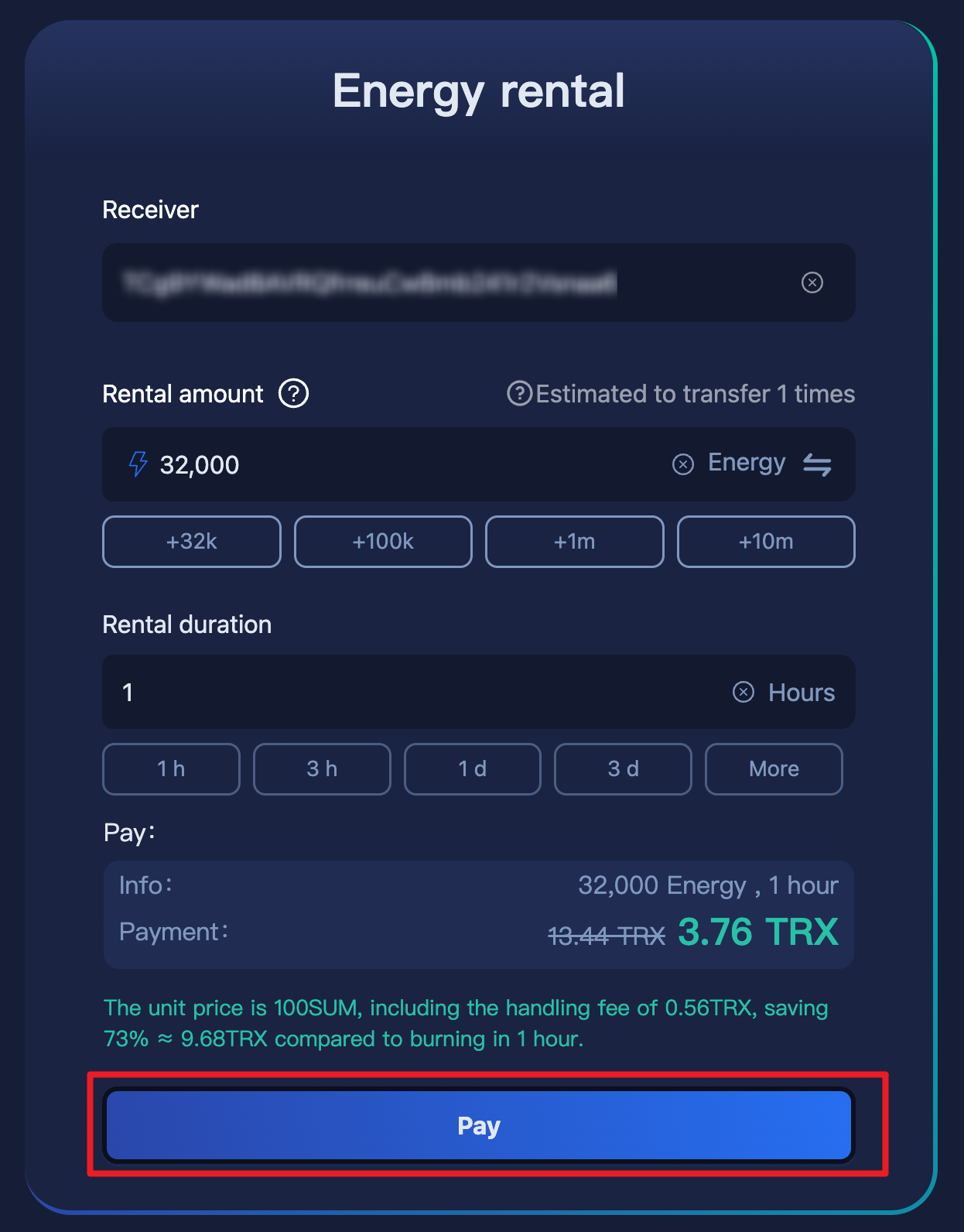
After confirming your rental information once again, choose the payment method, you can use dapp payment or TTpay payment.
dapp payment needs to be installed with Tronlink's Google plug-in wallet, if not installed you can go to the app store to install and then use, if you are a cell phone order users, you can open the website in the wallet app dapp browser and then order can be.
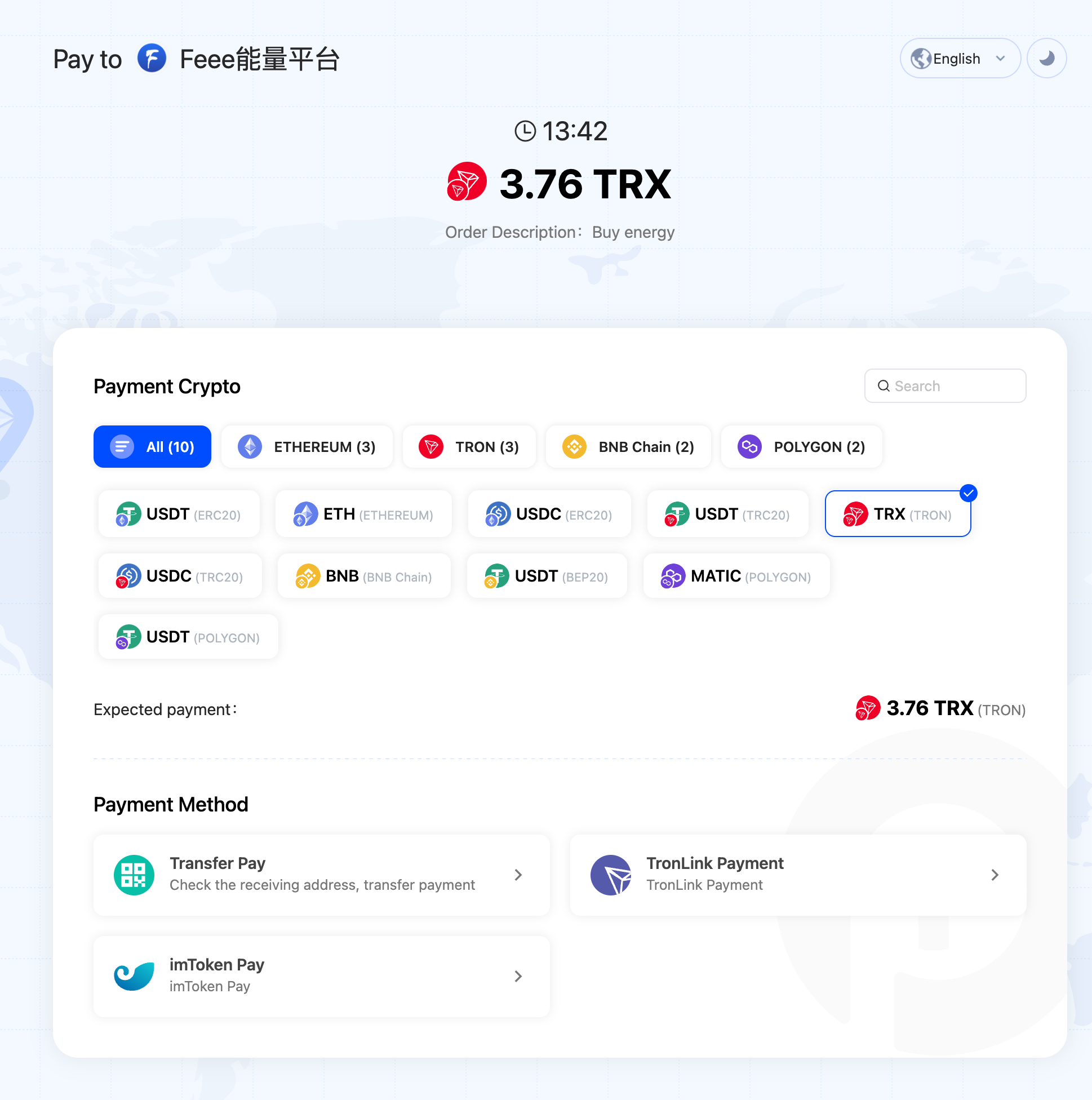
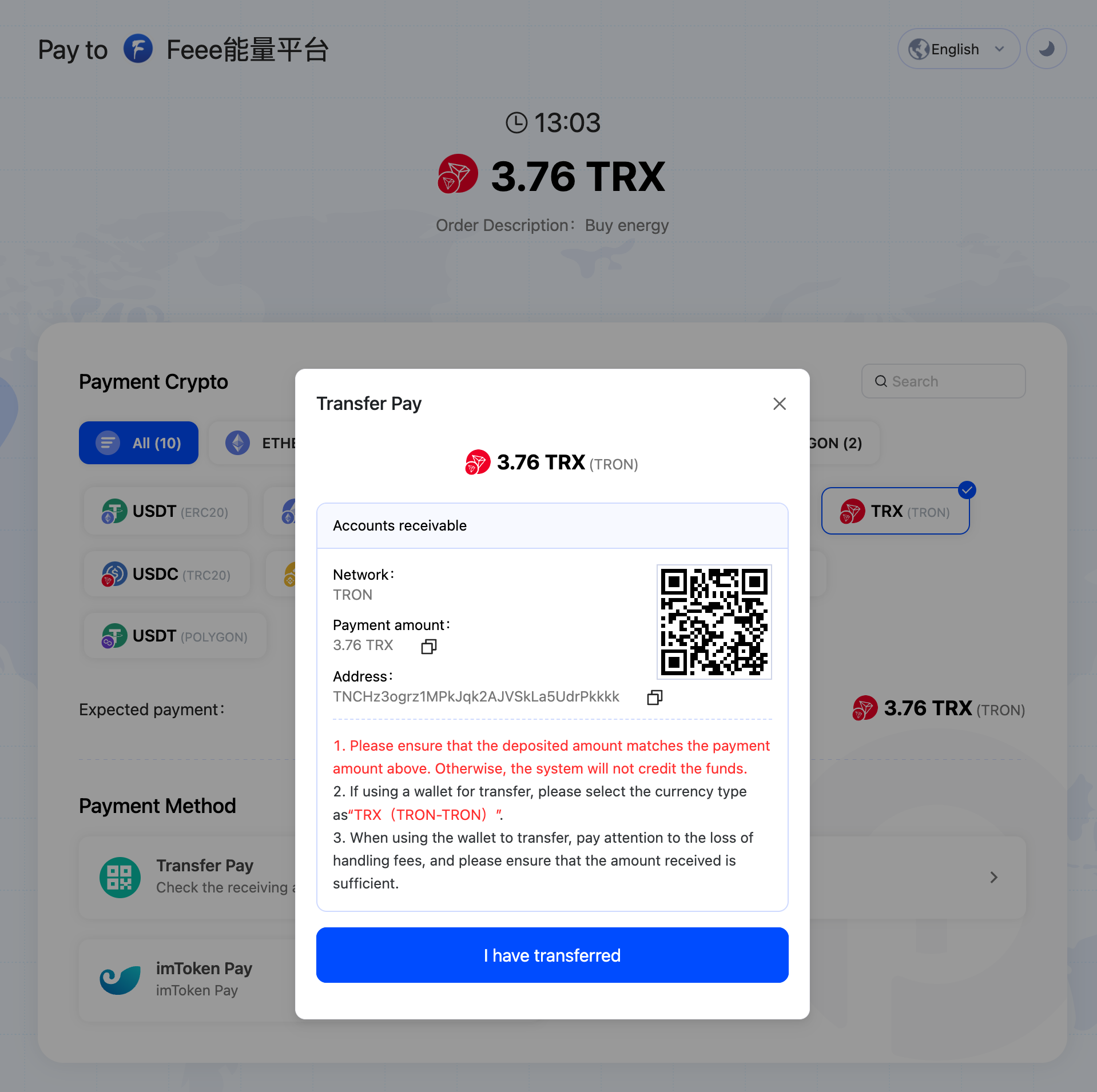
TTpay payment is to support multi-network multi-currency and multi-wallet payment method, you can not need to connect to the wallet, transfer payment, code payment, and other payment methods.
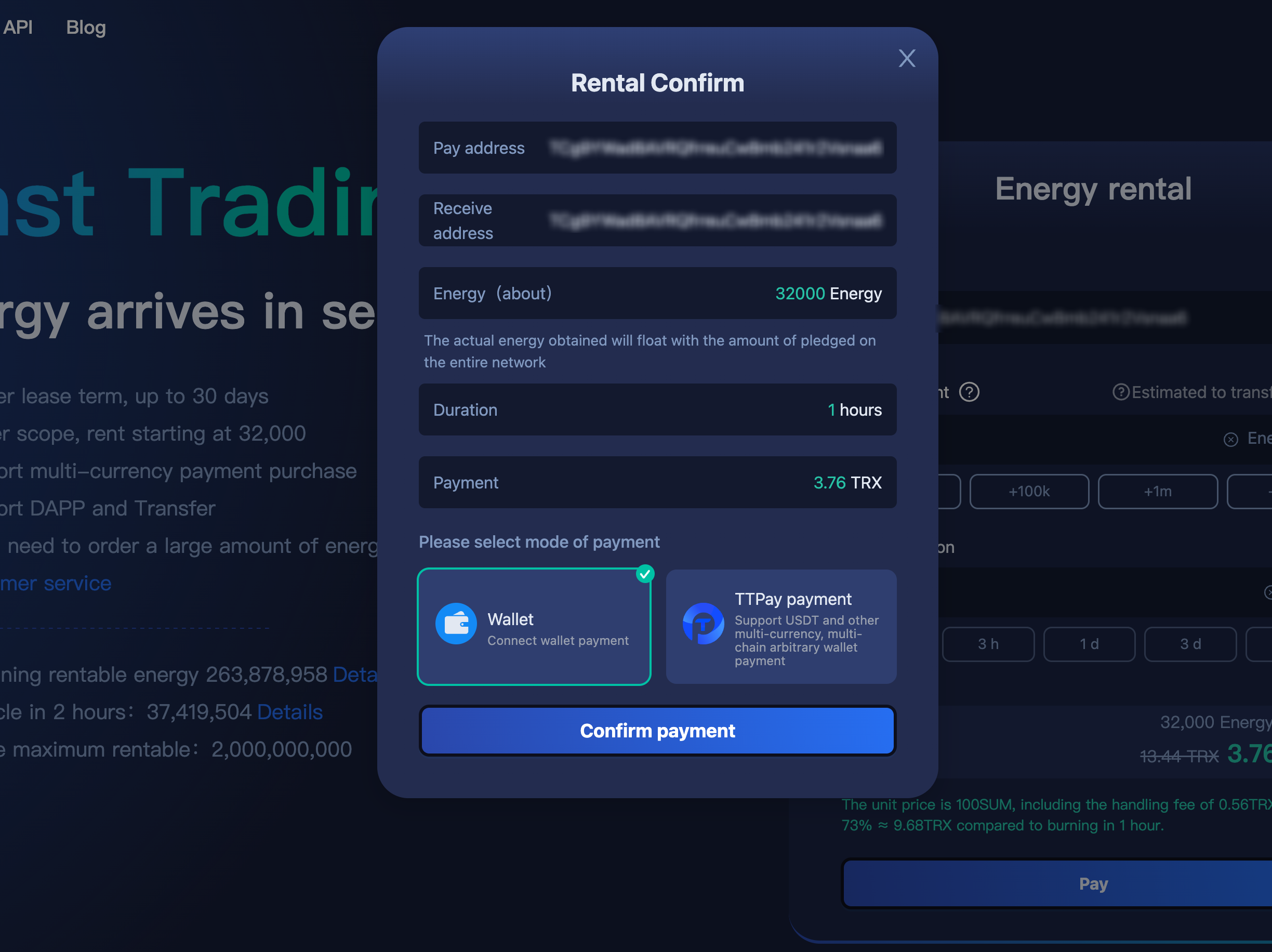
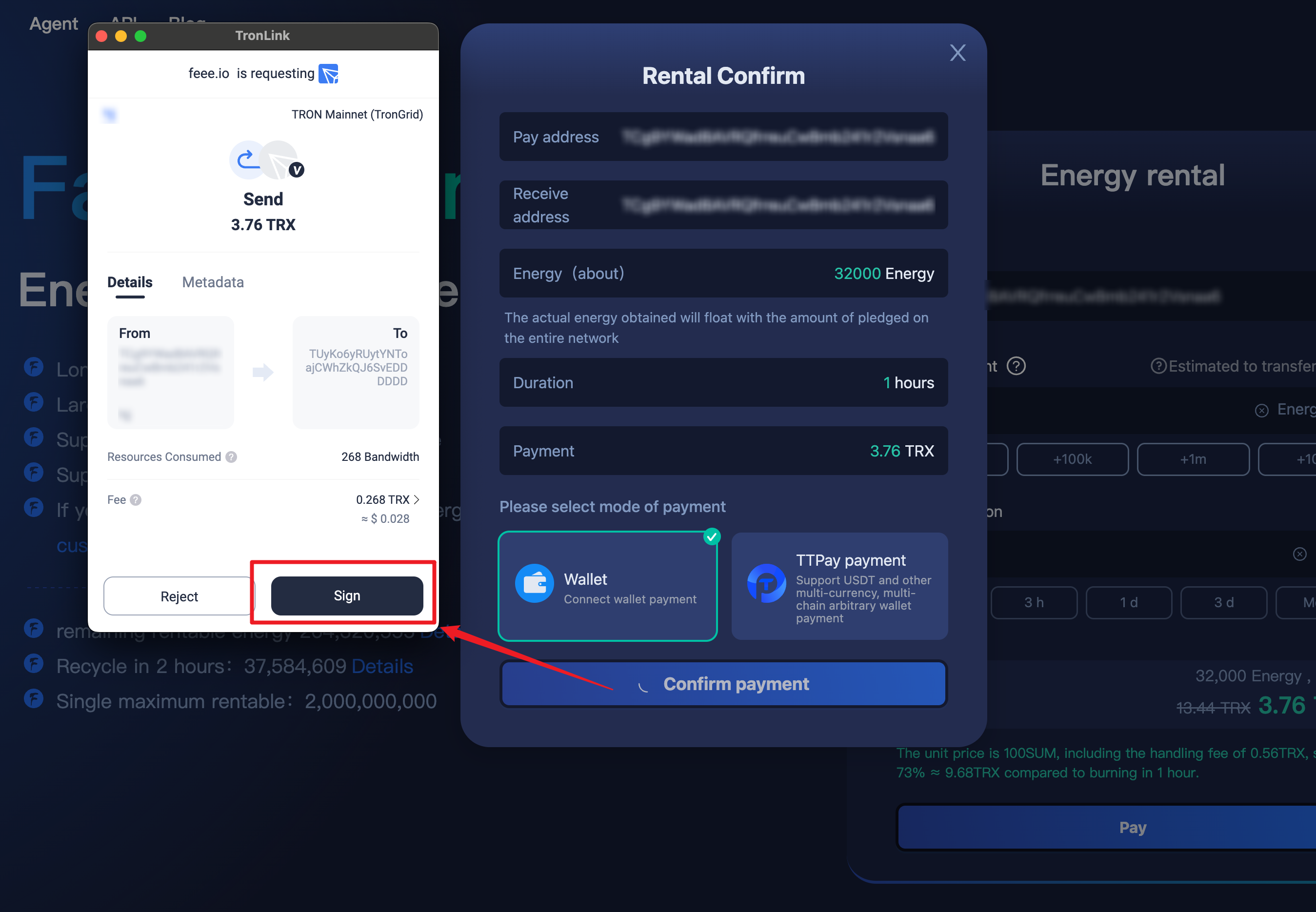
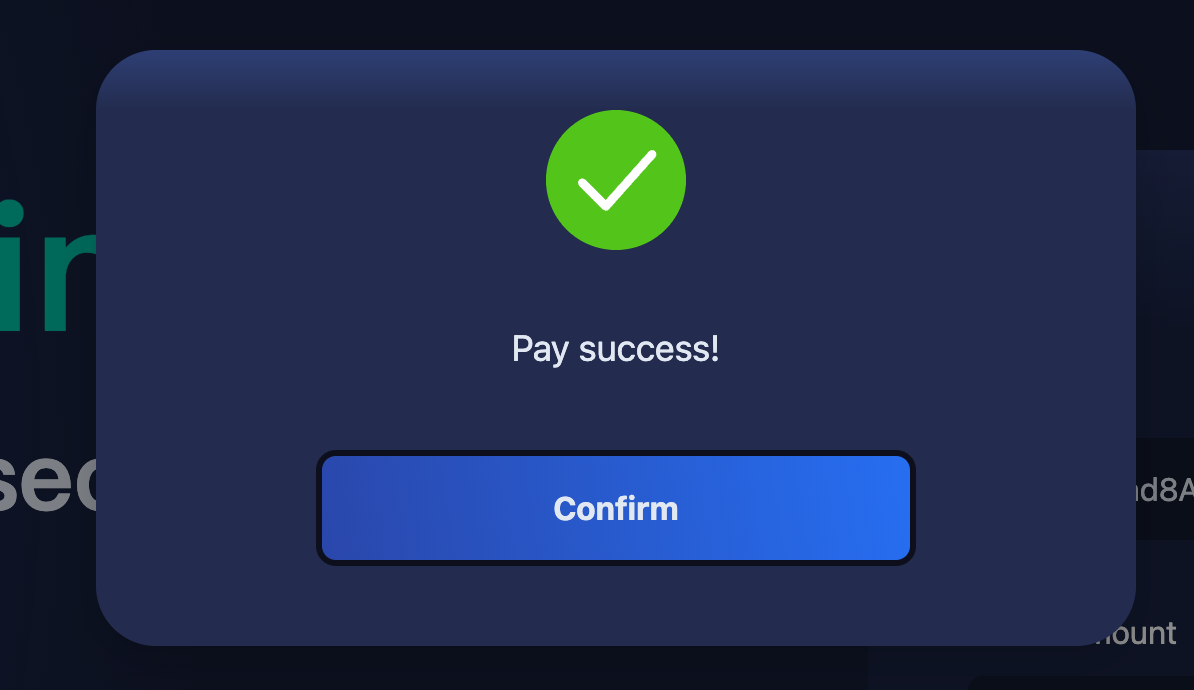
After connecting to your wallet, click "Confirm Payment", then click "Signature" when the signature window pops up, and then it shows that the payment is successful, which means that the order is successful.
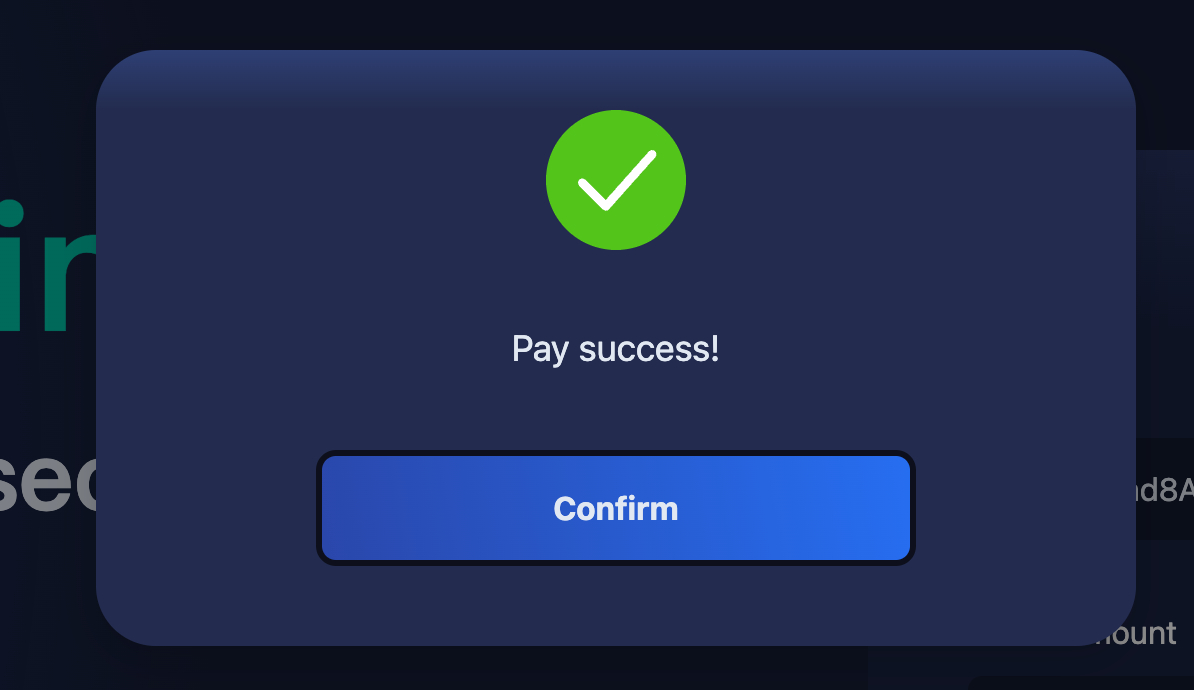
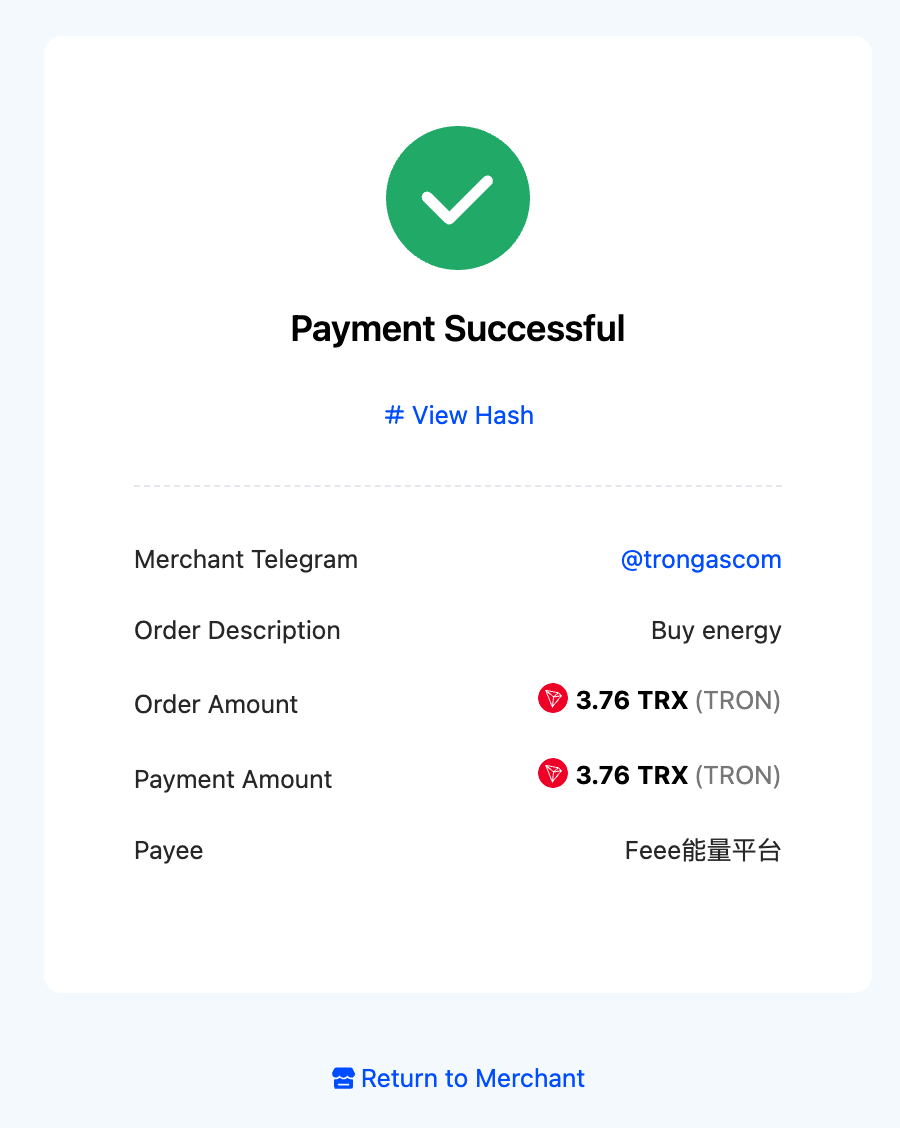
If you choose to pay by TTpay, a new payment page will pop up, choose the currency you want to pay and the payment method, according to the flow of the payment page to complete the payment within the validity period of the order to complete the order. The following picture shows the interface after successful payment.
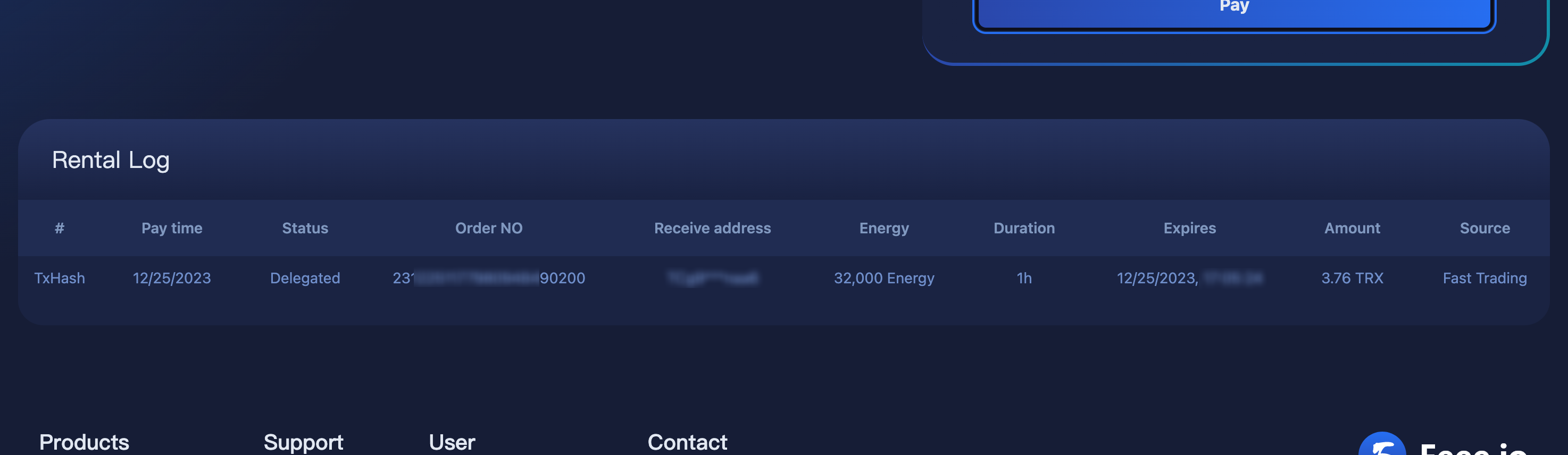
After placing an order, you can view your rental history in the "Rental History" section at the bottom of the page.